Showing posts with label gui. Show all posts

Grouping Symbol Matching in java

Problem:

Create a Grouping Symbol Matching app in java.

Output:

Enter arithmetic expression:
(6+5) + {3 - 4} *
Stack is full
Expression is valid


Solution:

//ArrayBasedStack.java
import java.util.Arrays;

public class ArrayBasedStack implements Stack{

private Object[] arr;
private int top;

public ArrayBasedStack(int capacity) {
arr = new Object[capacity];
top = -1;
Arrays.fill(arr, null);
}

@Override
public int size() {
return top+1;
}

@Override
public boolean isEmpty() {
return top==-1;
}

@Override
public void push(Object element) throws StackException {
if(size() == arr.length)
throw new StackException("Stack is full");
++top;
arr[top] = element;
}

@Override
public Object pop() throws StackException {
if(isEmpty())
throw new StackException("Stack is Empty");
Object toReturn = arr[top];
arr[top] = null;
top--;
return toReturn;
}

@Override
public Object top() throws StackException {
if(isEmpty())
throw new StackException("Stack is Empty");
return arr[top];
}
}
//GroupingSymbol.java
import java.util.Scanner;

public class GroupingSymbol {

private static String opening = "([{";
private static String closing = ")]}";

public static void main(String[] args) {
String expression;
Scanner scan = new Scanner(System.in);

System.out.println("Enter arithmetic expression: ");
expression = scan.nextLine();

boolean valid = validate(expression);

if(valid) System.out.println("Expression is valid");
else System.out.println("Expression is valid");
}

private static boolean validate(String expression) {
int index = 0;
boolean valid = true;
char current, top;
ArrayBasedStack temp = new ArrayBasedStack(expression.length());

while(valid && index < expression.length()) {
current = expression.charAt(index);
if (opening.indexOf(current) != -1) {
try {
temp.push(current);
} catch (StackException e) {
System.out.println(e.getMessage());
return false;
}
} else if(closing.indexOf(current) != -1) {
try {
top = (Character) temp.pop();
} catch (StackException e) {
System.out.println(e.getMessage());
return false;
}

if(opening.indexOf(top) != closing.indexOf(current))
valid = false;


}

}

if (!temp.isEmpty()) valid = false;


return valid;
}
}
//Stack.java
package com.ikallassi.groupingsymbolmatching;

public interface Stack {

public int size();
public boolean isEmpty();
public void push(Object elemnt) throws StackException;
public Object pop() throws StackException;
public Object top() throws StackException;


}
//StackException.java
package com.ikallassi.groupingsymbolmatching;

public class StackException extends Exception {

private static final long serialVersionUID = -5592227328424820584L;

public StackException(String msg) {
super(msg);
}
}
Read More

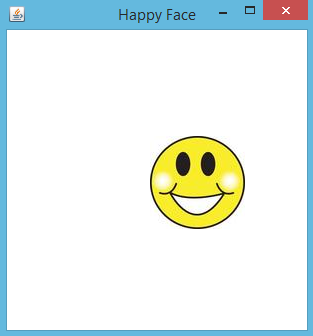
Create a bouncing face in java

Problem:

Create a bouncing face.

Output:


Prompt Picture Description


Solution:

//****************BouncingFaceFrame.java******************/
import javax.swing.JFrame;

public class BouncingFaceFrame {


public static void main(String[] args) {

JFrame frame = new JFrame("Happy Face");

frame.getContentPane().add(new BouncingFacePanel());
frame.pack();
frame.setVisible(true);

}

}
//****************BouncingFacePanel.java******************.
import java.awt.Color;
import java.awt.Dimension;
import java.awt.Graphics;
import java.awt.event.ActionEvent;
import java.awt.event.ActionListener;

import javax.swing.ImageIcon;
import javax.swing.JPanel;
import javax.swing.Timer;

public class BouncingFacePanel extends JPanel{


private final int WIDTH = 300, HEIGHT = 300;
private final int DELAY = 20, IMAGE_SIZE = 35;

private ImageIcon icon;
private int x, y, moveX, moveY;
private Timer timer;

public BouncingFacePanel() {
timer = new Timer(DELAY, new ReboundListener());

icon = new ImageIcon("images.jpg");

x = 5; y=40;
moveX = moveY = 3;

setBackground(Color.WHITE);
setPreferredSize(new Dimension(WIDTH, HEIGHT));
timer.start();
timer.addActionListener(new ReboundListener());

}

@Override
protected void paintComponent(Graphics g) {
super.paintComponent(g);
icon.paintIcon(this, g, x, y);
}

private class ReboundListener implements ActionListener {

@Override
public void actionPerformed(ActionEvent arg0) {

x += moveX;
y += moveY;

if ( x <= 0 || x >= (WIDTH-IMAGE_SIZE)) moveX *= -1;
if ( y <= 0 || y >= (WIDTH-IMAGE_SIZE)) moveY *= -1;

repaint();
}

}
}
Read More

Moving an arrow in java GUI

Problem:

Create a java application that changes an arrow based on the user's input.

You're responsible for adding the pictures of the arrow.

Output:


Prompt Picture Description


Solution:

//****************ArrowControlFrame.java********************/
import javax.swing.JFrame;

public class ArrowControlFrame {

 
 public static void main(String[] args) {
  
  JFrame frame = new JFrame("");
  frame.setDefaultCloseOperation(JFrame.EXIT_ON_CLOSE);
  
  frame.getContentPane().add(new ArrowControlPanel());
  frame.pack();
  frame.setResizable(false);
  frame.setLocationRelativeTo(null);
  frame.setVisible(true);
 }

}
//****************ArrowControlPanel.java****************/
import java.awt.Color;
import java.awt.Dimension;
import java.awt.Graphics;
import java.awt.event.KeyEvent;
import java.awt.event.KeyListener;

import javax.swing.ImageIcon;
import javax.swing.JPanel;

public class ArrowControlPanel extends JPanel {

 private ImageIcon up, down, left, right, current;
 private int x, y;
 private final int JUMP = 10;
 private final int WIDTH = 400, HEIGHT = 300;

 public ArrowControlPanel() {

  up = new ImageIcon(getClass().getResource("arrowUp.gif"));
  down = new ImageIcon(getClass().getResource("arrowDown.gif"));
  left = new ImageIcon(getClass().getResource("arrowLeft.gif"));
  right = new ImageIcon(getClass().getResource("arrowRight.gif"));

  current = up;

  x = WIDTH / 2;
  y = HEIGHT / 2;

  addKeyListener(new KeyEventHandler());

  setPreferredSize(new Dimension(WIDTH, HEIGHT));
  setBackground(Color.BLACK);
  setFocusable(true);

 }
 @Override
 protected void paintComponent(Graphics g) {
 super.paintComponent(g);
 current.paintIcon(this, g, x, y);
 }
 
 
 private class KeyEventHandler implements KeyListener {

  @Override
  public void keyPressed(KeyEvent e) {
   switch(e.getKeyCode()) {
   case  KeyEvent.VK_UP: 
    current = up;
    y -= JUMP;
    
    break;
   case KeyEvent.VK_DOWN:
   current = down;
   y += JUMP;
    break;
   case KeyEvent.VK_RIGHT:
   current = right;
   x+= JUMP;
    break;
    
   case KeyEvent.VK_LEFT: 
   current = left;
   x-= JUMP;
    break;
   }
   repaint();
  }

  @Override
  public void keyReleased(KeyEvent e) {


  }

  @Override
  public void keyTyped(KeyEvent e) {
 
   
  }


 }

}
Read More

Printing Random Colored Lines in Java

Problem:

Create a GUI-based java application that prints colored lines randomly.< br />< br />

Output:


Prompt Picture Description

Solution:

//*******************MyLine.java********************/
import java.awt.Color;
import java.awt.Graphics;

public class MyLine {
 
 private int x1,x2,y1,y2;
 private Color myColor;


 public MyLine(int x1, int x2, int y1, int y2, Color myColor) {
  this.x1 = x1;
  this.x2 = x2;
  this.y1 = y1;
  this.y2 = y2;
  this.myColor = myColor;
 }


 public void draw(Graphics g) {
  g.setColor(myColor);
  g.drawLine(x1, y1, x2, y2);
 }
 

}


//********************RandomShapesFrame.java**********/
import javax.swing.JFrame;

public class RandomShapesFrame {

 public static void main(String[] args) {
  
  JFrame frame = new JFrame("Polygons");
  frame.setDefaultCloseOperation(JFrame.EXIT_ON_CLOSE);
  
  frame.getContentPane().add(new RandomShapesPanel());
  frame.pack();
  frame.setVisible(true);
  
 }

}


//******************RandomShapesPanel.java**********/
import java.awt.Color;
import java.awt.Dimension;
import java.awt.Graphics;
import java.util.Random;

import javax.swing.JPanel;

public class RandomShapesPanel extends JPanel {
 
 private MyLine[] lines;
 private Random rnd = new Random();
 
 public RandomShapesPanel() {
  
  lines = new MyLine[5 + rnd.nextInt(5)]; //between 5 & 9 lines. 
  
  int x1, x2, y1, y2;
  Color myColor;
  
  for(int count=0; count < lines.length; count++) {
  
   x1 = rnd.nextInt(300);
   x2 = rnd.nextInt(300);
   y1 = rnd.nextInt(300);
   y2 = rnd.nextInt(300);
   
   myColor = new Color(rnd.nextInt(256),rnd.nextInt(256),rnd.nextInt(256));
   
   lines[count] = new MyLine(x1,x2,y1,y2,myColor);
   
  }
  
  setBackground(Color.white);
  setPreferredSize(new Dimension(300,300));
  
 }

 @Override
 protected void paintComponent(Graphics g) {
  super.paintComponent(g);
  for(MyLine line : lines)
   line.draw(g);
 }
 
}
Read More

Create collision of two rockets in java

Problem:

Create a GUI java-based application that animates the
collision of two rockets.

Output:


Prompt Picture Description

Solution:

//********************RocketsCollisionFrame.java***************/
import javax.swing.JFrame;

public class RocketsCollisionFrame {

 
 public static void main(String[] args) {
  
  JFrame frame = new JFrame("Rockets collision");
  frame.setDefaultCloseOperation(JFrame.EXIT_ON_CLOSE);
  
  frame.getContentPane().add(new RocketsCollisionPanel());
  frame.pack();
  frame.setVisible(true);


 }

}


//*******************RocketsCollisionPanel.java**************/
import java.awt.Color;
import java.awt.Dimension;
import java.awt.Graphics;
import java.awt.Point;
import java.awt.Polygon;
import java.awt.Rectangle;
import java.awt.event.ActionEvent;
import java.awt.event.ActionListener;

import javax.swing.JPanel;
import javax.swing.Timer;

public class RocketsCollisionPanel extends JPanel {

 private final int WIDTH = 600, HEIGHT = 600;
 private final int DELAY = 20; 
 
 private int[] xValues = {15,25,25,5,5};
 private int[] yValues = {5,15,55,55,15};
 
 private int[] x2Values = {285, 295, 295, 275, 275};
 
 private int deltaX1, deltaY1, deltaX2, deltaY2;


 Polygon rocket1, rocket2;
 private Timer timer;
 
 public RocketsCollisionPanel() {
  
  timer = new Timer(DELAY, new CollisionListener());
  
  rocket1 = new Polygon(xValues, yValues, xValues.length);
  rocket2 = new Polygon(x2Values, yValues, xValues.length);
  
  deltaX1 = deltaY1 = deltaX2 = deltaY2 = 5;
  
  setBackground(Color.BLACK);
  setPreferredSize(new Dimension(WIDTH, HEIGHT));
  timer.start();
  
 }
 
 @Override
 protected void paintComponent(Graphics g) {
  super.paintComponent(g);
  
  g.setColor(Color.RED);
  g.fillPolygon(rocket1);
  
  g.setColor(Color.BLUE);
  g.fillPolygon(rocket2);
 
  
 }
 
 
 private class CollisionListener  implements ActionListener {

  @Override
  public void actionPerformed(ActionEvent arg0) {
   rocket1.translate(deltaX1, deltaY1);
   rocket2.translate(deltaX2, deltaY2);
   
   Rectangle r1 = rocket1.getBounds();
   Rectangle r2 = rocket2.getBounds();
   
   
   if (r1.intersects(r2)) { 
    deltaX1 *= -1;
    deltaX2 *= -1;
    deltaY1 *= -1;
    deltaY2 *= -1;
   }
   
   Point topLeftCornerR1 = r1.getLocation();
   Point topLeftCornerR2 = r2.getLocation();
   
   double x1 = topLeftCornerR1.getX();
   double y1 = topLeftCornerR1.getY();
   double x2 = topLeftCornerR2.getX();
   double y2 = topLeftCornerR2.getY();
   
   if(x1 <= 0 || x1 >= WIDTH - 20)
    deltaX1 *= -1;
   if(y1 <= 0 || y1 >= HEIGHT - 50)
    deltaY1 *= -1;
   
   if(x2 <= 0 || x2 >= WIDTH - 20)
    deltaX2 *= -1;
   if(y2 <= 0 || y2 >= HEIGHT - 50)
    deltaY2 *= -1;
  
   repaint();
  }
  
 }


}
Read More

Creating and incrementing a button in java

Problem:

Create a java panel that shows a button and increments it.

Output:


Prompt Picture Description

Solution:

package com.javaproblems.comJButtonDemo;

import javax.swing.JFrame;
import java.awt.Color;
import java.awt.Dimension;
import java.awt.event.ActionEvent;
import java.awt.event.ActionListener;

import javax.swing.JButton;
import javax.swing.JLabel;
import javax.swing.JPanel;

public class PushButtonPanel extends JPanel {

 private JButton pushButton;
 private JLabel outputLabel;
 private int count;
 
 public PushButtonPanel() {
  count = 0;
  outputLabel  = new JLabel("Count: " + count);
  pushButton = new JButton("Push me");
  
  add(pushButton);
  add(outputLabel);
  pushButton.addActionListener(new ButtonListener());
  
  setBackground(Color.cyan);
  setPreferredSize(new Dimension(300,200));
 }

 private class ButtonListener implements ActionListener {
  @Override
  public void actionPerformed(ActionEvent e) {
   count++;
   outputLabel.setText("Count: " + count);
  }
 }
 
}
Read More

How to draw a snowman in java

Problem:

Draw a snowman in java.

Output:


Prompt Picture Description

Solution:

import java.applet.*;
import java.awt.*;

public class Snowman extends Applet
{
   //-----------------------------------------------------------------
   //  Draws a snowman.
   //-----------------------------------------------------------------
   public void paint (Graphics page)
   {
      final int MID = 150;
      final int TOP = 50;

 setBackground(Color.cyan); 
 page.setColor (Color.blue);
      page.fillRect (0, 175, 300, 50);  // ground

      page.setColor (Color.yellow);
      page.fillOval (-40, -40, 80, 80);  // sun

      page.setColor (Color.white);
      page.fillOval (MID-20, TOP, 40, 40);      // head
      page.fillOval (MID-35, TOP+35, 70, 50);   // upper torso
      page.fillOval (MID-50, TOP+80, 100, 60);  // lower torso

      page.setColor (Color.black);
      page.fillOval (MID-10, TOP+10, 5, 5);   // left eye
      page.fillOval (MID+5, TOP+10, 5, 5);    // right eye

      page.drawArc (MID-10, TOP+20, 20, 10, 190, 160);   // smile

      page.drawLine (MID-25, TOP+60, MID-50, TOP+40);  // left arm
      page.drawLine (MID+25, TOP+60, MID+55, TOP+60);  // right arm

      page.drawLine (MID-20, TOP+5, MID+20, TOP+5);  // brim of hat
      page.fillRect (MID-15, TOP-20, 30, 25);        // top of hat
   }
 
  
}
</pre></span></div>
Read More

Fibbonaci GUI calcualtor

Problem:

See the output

Output:


Prompt Picture Description


Solution:

//********************FibonacciNumbersApp.java*********/
import java.awt.Container;
import java.awt.GridLayout;
import java.awt.event.ActionEvent;
import java.awt.event.ActionListener;

import javax.swing.JButton;
import javax.swing.JFrame;
import javax.swing.JLabel;
import javax.swing.JPanel;
import javax.swing.JTextField;

public class FibonacciNumbersApp extends JFrame {

 private JLabel inputLabel, resultLabel;
 private JTextField InputTextField;
 private JButton goButton;
 private int number;
 private JPanel northPanel, southPanel;
 private FibonacciWorker worker;
 public  FibonacciNumbersApp() {
  
  northPanel = createNorthPanel();
  southPanel = createSouthPanel();
 
  Container contentPane = getContentPane();
  contentPane.setLayout(new GridLayout(2,1));
  contentPane.add(northPanel);
  contentPane.add(southPanel);
 }
 
 private JPanel createNorthPanel() {
  JPanel panel = new JPanel();
  
  inputLabel = new JLabel("Get The Fibonnaci of: ");
  InputTextField = new JTextField(6);
  
  panel.add(inputLabel);
  panel.add(InputTextField);
  
  return panel;
 }
 
 private JPanel createSouthPanel() {
  JPanel panel = new JPanel();
  
  goButton = new JButton("Go");
  goButton.addActionListener(new ActionListener() {
   @Override
   public void actionPerformed(ActionEvent e) {
    try {
     number = Integer.parseInt(InputTextField.getText());
    } catch (NumberFormatException e1) {
     resultLabel.setText("Input must be numeric!");
     return;
    }
    worker = new FibonacciWorker(number, resultLabel);
    worker.execute();
    resultLabel.setText("Calculating..");
   }
  });
  resultLabel = new JLabel("Ouptut will appear here: ");
  
  panel.add(goButton);
  panel.add(resultLabel);
  return panel;
 }


 public static void main(String[] args) {
  FibonacciNumbersApp demo = new FibonacciNumbersApp();
  demo.setDefaultCloseOperation(JFrame.EXIT_ON_CLOSE);
  
  demo.setSize(350, 150);
  demo.setVisible(true);
  demo.setResizable(false);
  demo.setLocationRelativeTo(null);
  
 }
 
}
//********************FibonacciWorker.java*********/
import java.util.concurrent.ExecutionException;
import javax.swing.JLabel;
import javax.swing.SwingWorker;

public class FibonacciWorker extends SwingWorker<Long, Object> {

 private int number;
 private JLabel resultLabel;
 
 
 public FibonacciWorker(int number, JLabel resultLabel) {
  this.number = number;
  this.resultLabel = resultLabel;
  
 }
 
 
 @Override
 protected java.lang.Long doInBackground() throws Exception {
 
  return fibonacci(number);
 }
 
 @Override
 protected void done() {
  try {
   resultLabel.setText(get().toString());
  } catch (InterruptedException e) {
   resultLabel.setText("Interupted while waiting for result");
  } catch (ExecutionException e) {
   resultLabel.setText("Error encountred during execution");
  }
 
 }
 
 public  long fibonacci(int n) {
  if(n==0 || n==1) 
   return n;
  else 
   return fibonacci(n-1) + fibonacci(n-2);
 }
 
 
}
Read More

GUI Interest calculator in Java

Problem:

Create a GUI interest calculator in java.

Output:


Prompt Picture Description


Solution:

import java.awt.Container;
import java.awt.event.ActionEvent;
import java.awt.event.ActionListener;
import java.text.DecimalFormat;

import javax.swing.JButton;
import javax.swing.JFrame;
import javax.swing.JLabel;
import javax.swing.JScrollPane;
import javax.swing.JSpinner;
import javax.swing.JTextArea;
import javax.swing.JTextField;
import javax.swing.SpinnerNumberModel;

public class Calculator extends JFrame{

 private JLabel amountLabel, rateLabel, yearsLabel, outputLabel;
 private JTextField amountTextField, rateTextField;
 private JButton calculateButton; 
 private JSpinner durationSpinner;
 private JTextArea outputTextArea;
 private JScrollPane scrollPane;
 private JButton clearButton;

 public Calculator() {
  createGUI();
 }
 
 private void createGUI() {
 
  Container contentPane = getContentPane();
  contentPane.setLayout(null);
  
  
  amountLabel = new JLabel();
  amountLabel.setText("Principal");
  amountLabel.setBounds(16, 16, 76, 24);
  contentPane.add(amountLabel);
  
  amountTextField = new JTextField();
  amountTextField.setBounds(108, 16, 100, 24);
  amountTextField.setHorizontalAlignment(JTextField.RIGHT);
  contentPane.add(amountTextField);
  
  calculateButton = new JButton("Calculate");
  calculateButton.setBounds(224, 16, 100, 24);
  calculateButton.addActionListener(new ActionListener() {
  

   @Override
   public void actionPerformed(ActionEvent e) {
    processData();
   }

   private void processData() {
   
    if (amountTextField.getText().length()!=0 && 
      rateTextField.getText().length()!=0) { 
     double principal = 
       Double.parseDouble(amountTextField
       .getText());
     double rate = 
       Double.parseDouble(rateTextField.getText());
     Integer yearsInteger = (Integer) durationSpinner.getValue();
     int yearsint = yearsInteger.intValue();

     DecimalFormat fmt = new DecimalFormat("$#.##");
     double amount;
     outputTextArea.setText("Year\tAmount");

     for (int i = 1; i <= yearsint; i++) {
      amount = principal * Math.pow(1 + rate / 100, i);
      outputTextArea.append("\n" + i + "\t" + fmt.format(amount));
     }
     outputTextArea.setCaretPosition(0);
    }
    
    
   }
  });
  

  contentPane.add(calculateButton);
  
  rateLabel = new JLabel("Interest rate");
  rateLabel.setBounds(16, 56, 76, 24);
  contentPane.add(rateLabel);
  
  rateTextField = new JTextField();
  rateTextField.setBounds(108, 56, 100, 24);
  rateTextField.setHorizontalAlignment(JTextField.RIGHT);
  contentPane.add(rateTextField);
   
  clearButton = new JButton("Clear Data");
  clearButton.setBounds(224, 56, 100, 24);
  clearButton.addActionListener(new ActionListener() {
  
  
   @Override
   public void actionPerformed(ActionEvent arg0) {
    clearData();
   }

   private void clearData() {
    outputTextArea.setText("");
    amountTextField.setText("");
    rateTextField.setText("");
    
    durationSpinner.setValue(new Integer(1));
   }
   
  });
  contentPane.add(clearButton);
  
  
  yearsLabel = new JLabel("Years:");
  yearsLabel.setBounds(16, 96, 76, 24);
  contentPane.add(yearsLabel);
  
  durationSpinner = new JSpinner(new SpinnerNumberModel(1, 1, 10, 1));
  durationSpinner.setBounds(108, 96, 100, 24);
  contentPane.add(durationSpinner);
  
  outputLabel = new JLabel();
  outputLabel.setText("Yearly Account Balance:");
  outputLabel.setBounds(16, 136, 250, 24);
  contentPane.add(outputLabel);
  
  outputTextArea = new JTextArea();
  outputTextArea.setEditable(false);
  scrollPane = new JScrollPane(outputTextArea);
  scrollPane.setBounds(16, 165, 300, 90);
  scrollPane.setVerticalScrollBarPolicy(JScrollPane.VERTICAL_SCROLLBAR_ALWAYS);
  contentPane.add(scrollPane);


  setSize(340 , 300);
  setVisible(true);
  setResizable(false);
  setLocationRelativeTo(null);
 }
 
 public static void main(String[] args) {
   
  Calculator demoFrame = new Calculator();
  demoFrame.setDefaultCloseOperation(JFrame.EXIT_ON_CLOSE);
  
 }

}
Read More

Create a drawing dot gui application in java

Problem:

Create a drawing dot java gui application.


Prompt Picture Description


Solution:

//***************DrawingDotFrame.java************************/
import javax.swing.JFrame;

public class DrawingDotFrame {

 
  public static void main(String[] args) {
   
   JFrame frame = new JFrame("Drawing Dot");
   frame.setDefaultCloseOperation(JFrame.EXIT_ON_CLOSE);
   frame.getContentPane().add(new DrawingDotPanel());
   frame.pack();
   frame.setVisible(true);
   frame.setResizable(false);
   frame.setLocationRelativeTo(null);
  }
}
//***************DrawingDotPanel.java************************/
import java.awt.Color;
import java.awt.Dimension;
import java.awt.Graphics;
import java.awt.Point;
import java.awt.event.MouseEvent;
import java.awt.event.MouseListener;
import java.util.ArrayList;

import javax.swing.JPanel;

public class DrawingDotPanel extends JPanel {

 private ArrayList<Point> points;
 private final int WIDTH = 400, HEIGHT = 400;
 private final int Radius = 3;
 
 public DrawingDotPanel() {

  
  points = new ArrayList<>();
  
  addMouseListener(new DotsListener());
  
  
  setPreferredSize(new Dimension(WIDTH,HEIGHT));
  setBackground(Color.BLACK);
 }
 @Override
 protected void paintComponent(Graphics g) {
  super.paintComponent(g);
  g.setColor(Color.GREEN);
  
  for(Point p : points)
  g.fillOval(p.x-Radius, p.y-Radius, 2*Radius, 2*Radius); 
  g.drawString("Count: " + points.size(), 5,15);
  
 }
 private class DotsListener implements MouseListener {

  @Override
  public void mouseClicked(MouseEvent arg0) {
   // TODO Auto-generated method stub
   
  }

  @Override
  public void mouseEntered(MouseEvent arg0) {
   // TODO Auto-generated method stub
   
  }

  @Override
  public void mouseExited(MouseEvent arg0) {
   // TODO Auto-generated method stub
   
  }

  @Override
  public void mousePressed(MouseEvent arg0) {
   // TODO Auto-generated method stub
   
   points.add(arg0.getPoint());
   repaint();
  }

  @Override
  public void mouseReleased(MouseEvent arg0) {
   // TODO Auto-generated method stub
   
  }
  
 }
}


Read More

Introduction to GUI in Java

Most of the example programs we've looked at so far on this website have been Java applications. More specifically, they have been command-line applications, which interact with the user only through simple text prompts. A Java application can have graphical components as well. Regularly on this website, we will explore the capabilities of Java to create programs with graphical user interfaces (GUIs). In this post, we establish the basic issues regarding graphics-based applications.

A GUI component is an object that represents a screen element that is used to display information or to allow the user to interact with the program in a certain way. GUI components include labels, buttons, text fields, scroll bars, and menus.

Java components and other GUI-related classes are defined primarily in two packages: java.awt and javax.swing. (Note the x in javax.swing.) The Abstract Windowing Toolkit (AWT) was the original Java GUI package. It still contains many important classes, such as the Color class that we used in Chapter 2. The Swing package was added later and provides components that are more versatile than those of the AWT package. Both packages are needed for GUI development, but we will use Swing components whenever there is an option.

A container is a special type of component that is used to hold and organize other components. Frames and panels are two examples of Java containers. Let’s explore them in more detail.

A frame is a container that is used to display GUI-based Java applications. A frame is displayed as a separate window with its own title bar. It can be repositioned on the screen and resized as needed by dragging it with the mouse. It contains small buttons in the corner of the frame that allow the frame to be minimized, maximized, and closed. A frame is defined by the JFrame class.

A panel is also a container. However, unlike a frame, it cannot be displayed on its own. A panel must be added to another container for it to be displayed. Generally a panel doesn’t move unless you move the container that it’s in. Its primary role is to help organize the other components in a GUI. A panel is defined
by the JPanel class.

We can classify containers as either heavyweight or lightweight. A heavyweight container is one that is managed by the underlying operating system on which the program is run, whereas a lightweight container is managed by the Java program itself. Occasionally this distinction will be important as we explore GUI development. A frame is a heavyweight component, and a panel is a lightweight component.

Heavyweight components are more complex than lightweight components in general. A frame, for example, has multiple panes, which are responsible for various characteristics of the frame window. All visible elements of a Java interface are displayed in a frame’s content pane.

Generally, we can create a Java GUI-based application by creating a frame in which the program interface is displayed. The interface is often organized onto a primary panel, which is added to the frame’s content pane. The components in the primary panel are often organized using other panels as needed.

Containers are generally not useful unless they help us organize and display other components. Let’s examine another fundamental GUI component. A label is a component that displays a line of text in a GUI. A label can also display an image, a topic discussed later in this chapter. Usually, labels are used to display
information or identify other components in the GUI. Labels can be found in almost every GUI-based program.

Let's look at this example that uses frames, panels, and labels.

import java.awt.*;
import javax.swing.*;

public class Authority
{
public static void main (String[] args)
{
JFrame frame = new JFrame ("Authority");
frame.setDefaultCloseOperation (JFrame.EXIT_ON_CLOSE);

JPanel primary = new JPanel();
primary.setBackground (Color.yellow);
primary.setPreferredSize (new Dimension(250, 75));

JLabel label1 = new JLabel ("Question authority,");
JLabel label2 = new JLabel ("but raise your hand first.");
primary.add (label1);
primary.add (label2);

frame.getContentPane().add(primary);
frame.pack();
frame.setVisible(true);
}
}
When the program in above is executed, a new window appears on the screen displaying a phrase.


The text of the phrase is displayed using two label components. The labels are organized in a panel, and the panel is displayed in the content pane of the frame.

The JFrame constructor takes a string as a parameter, which it displays in the itle bar of the frame. The call to the setDefaultCloseOperation method determines what will happen when the close button (the X) in the corner of the frame is clicked. In most cases we’ll simply let that button terminate the program, as
indicated by the EXIT_ON_CLOSE constant.

A panel is created by instantiating the JPanel class. The background color of the panel is set using the setBackground method. The setPreferredSize method accepts a Dimension object as a parameter, which is used to indicate the width and height of the component in pixels. The size of many components can be set
this way, and most also have setMinimumSize and setMaximumSize methods to help control the look of the interface.

The labels are created by instantiating the JLabel class, passing to its constructor the text of the label. In this program two separate label components are created.

Containers have an add method that allows other components to be added to them. Both labels are added to the primary panel and are from that point on considered to be part of that panel. The order in which components are added to a container often matters. In this case, it determines which label appears above the other.

Finally, the content pane of the frame is obtained using the getContentPane method, immediately after which the add method of the content pane is called to add the panel. The pack method of the frame sets its size appropriately based on its contents—in this case the frame is sized to accommodate the size of the panel it contains. This is a better approach than trying to set the size of the frame explicitly, which should change as the components within the frame change. The call to the setVisible method causes the frame to be displayed on the monitor screen.

The Authority program is not interactive. In general, labels do not allow the user to interact with a program.

However, you can interact with the frame itself in various ways. You can move the entire frame to another point on the desktop by grabbing the title bar of the frame and dragging it with the mouse. You can also resize the frame by dragging the bottom-right corner of the frame. Note what happens when the frame is made wider: the second label pops up next to the first label. Every container is managed by an object called a layout manager that determines how the components in the container are laid out. The layout manager is consulted when important things happen to the interface, such as when the frame is resized.

Unless you specify otherwise, the components in a panel will try to arrange themselves next to one another in a row, and a component will move down to the next row only when the width of the panel won’t accommodate it. Experiment with this program to see how the layout manager changes the organization of
the labels as the window size is changed.
Read More

JFileChooser java example

Problem:

Create java gui app that allows the user to pick picture
and text files only and displays them respectively.


Solution:

import java.awt.Container;
import java.awt.event.ActionEvent;
import java.awt.event.ActionListener;
import java.io.File;
import java.io.IOException;
import java.net.MalformedURLException;
import java.net.URL;

import javax.swing.JEditorPane;
import javax.swing.JFileChooser;
import javax.swing.JFrame;
import javax.swing.JMenu;
import javax.swing.JMenuBar;
import javax.swing.JMenuItem;
import javax.swing.JScrollPane;
import javax.swing.filechooser.FileFilter;

public class JFileChooserapp extends JFrame {

 
 private JMenuBar bar;
 private JMenu fileMenu;
 private JMenuItem openMenuItem;
 private JEditorPane contentArea;
 private JScrollPane scrollPane;
 private File selectedFile;
 private String[] okExtensions = {"png", "gif", "tiff", "jpg", "txt"};
 
 public JFileChooserapp() {
  super("JFileChooser Demo");
  
  bar = new JMenuBar();
  setJMenuBar(bar);
  
  fileMenu = new JMenu("File");
  fileMenu.setMnemonic('f');
  
  openMenuItem = new JMenuItem("Open");
  openMenuItem.setMnemonic('o');
  openMenuItem.addActionListener(new ActionListener() {
   
   @Override 
   public void actionPerformed(ActionEvent e) {
    selectedFile = getFile();
    if(selectedFile !=null)
     displayFile(selectedFile);
   }

  });
  
  fileMenu.add(openMenuItem);
  bar.add(fileMenu);
  setJMenuBar(bar);
  
  contentArea = new JEditorPane();
  contentArea.setEditable(false);
  scrollPane = new JScrollPane(contentArea);
  
  Container contentPane = getContentPane();
  contentPane.add(scrollPane);
  
  setExtendedState(JFrame.MAXIMIZED_BOTH);
  setVisible(true);
  
  
 }
 
 private File getFile() {
  
  File output = null;
  
  JFileChooser fileChooser = new JFileChooser();
  fileChooser.setFileSelectionMode(JFileChooser.FILES_ONLY);
  fileChooser.setFileFilter(new FileFilter() {

   @Override
   public String getDescription() {
   String description = "";
   for (String ext : okExtensions) 
    description += "*." + ext + " ";
   return description;
   }
   
   @Override
   public boolean accept(File f) {
    for(String ext: okExtensions)  
     if (f.getName().toLowerCase().endsWith(ext)) 
     return true;
    return false;
   }


  });
  
  int result = fileChooser.showOpenDialog(this);
  if (result == JFileChooser.APPROVE_OPTION) {
    output = fileChooser.getSelectedFile();
    if ( output == null || !output.exists()) output = null;
  }
  return output;
  }

 private void displayFile(File file) {
 
  String fileName = file.getName();
  int lastIndexOfDot = fileName.lastIndexOf('.');
  String extension  = fileName.substring(lastIndexOfDot+1);
  boolean isImage = true;
  if (extension.equalsIgnoreCase("txt")) isImage= false;
  
  URL fileUrl = null;
  try {
   fileUrl = file.toURI().toURL();
  } catch (MalformedURLException e) {
   return;
  }
  
  if (isImage) {
   contentArea.setContentType("text/html");
   contentArea.setText("<html><title>Image</title><img src=" + 
   fileUrl + " /></html>");
   
  } else {
   try {
    contentArea.setContentType("text/plain");
    contentArea.setPage(fileUrl);
   } catch (IOException e) {
    return;
   }
  }


 }


 public static void main(String[] args) {
  JFileChooserapp demo = new JFileChooserapp();
  demo.setDefaultCloseOperation(JFrame.EXIT_ON_CLOSE);
  
 }


}
Read More

Follow Me

If you like our content, feel free to follow me to stay updated.

Subscribe

Enter your email address:

We hate spam as much as you do.

Upload Material

Got an exam, project, tutorial video, exercise, solutions, unsolved problem, question, solution manual? We are open to any coding material. Why not upload?

Upload

Copyright © 2012 - 2014 Java Problems  --  About  --  Attribution  --  Privacy Policy  --  Terms of Use  --  Contact